
Introduction
Microsoft 365 Copilot signifies a major leap in productivity in recent times, incorporating AI-driven support directly into the collection of applications that millions utilize every day. As companies keep integrating this technology until 2025, knowing how to effectively utilize Copilot has turned into a crucial ability for professionals aiming to enhance their productivity.
In this detailed guide, Tech AI Magazine examines ten revolutionary prompts that will change how you utilize Microsoft 365 Copilot within different applications such as Word, Excel, PowerPoint, Outlook, and Teams. Regardless of whether you’re generating content, examining data, crafting presentations, overseeing communications, or working with coworkers, these prompts will assist you in harnessing the complete capabilities of this robust AI assistant.
What Makes an Effective Microsoft 365 Copilot Prompt?
Before we explore our list of transformative prompts, it’s essential to grasp what constitutes an effective prompt. The most effective Copilot prompts are:
- Specific: Explicitly express your objectives.
- Contextual: Offer pertinent details and criteria.
- Actionable: Present your request as a straightforward directive.
- Iterative: Get ready to enhance and expand upon initial outcomes.
Keeping these principles in consideration, let’s delve into the ten prompts that could transform your Microsoft 365 workflow.
1. Document Creation and Refinement in Word
Prompt: “Create a comprehensive report about customer satisfaction analysis targeted at customers. Include sections on India, use a professional tone, and add relevant statistics from reputable sources where appropriate. Format with headings, bullet points, and a table of contents.”
Response
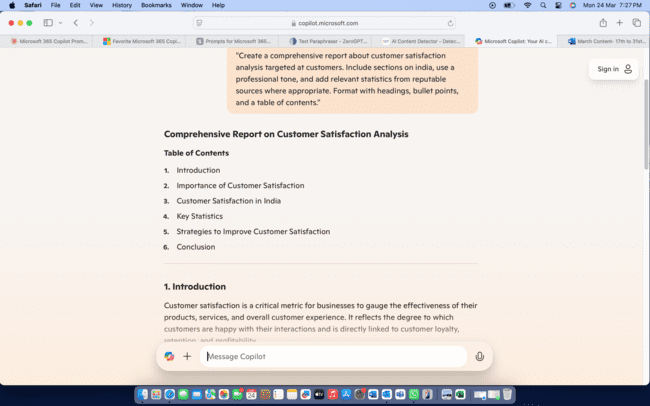
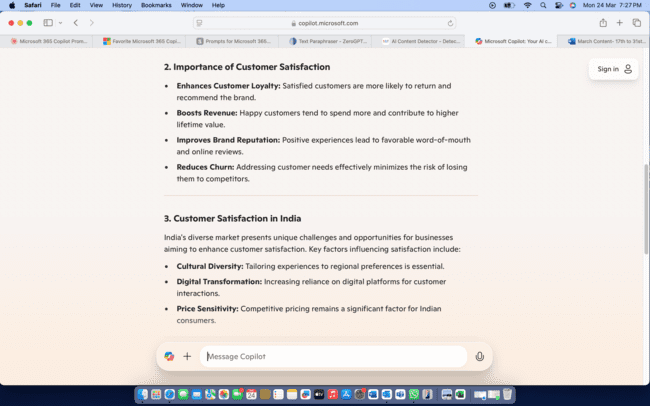
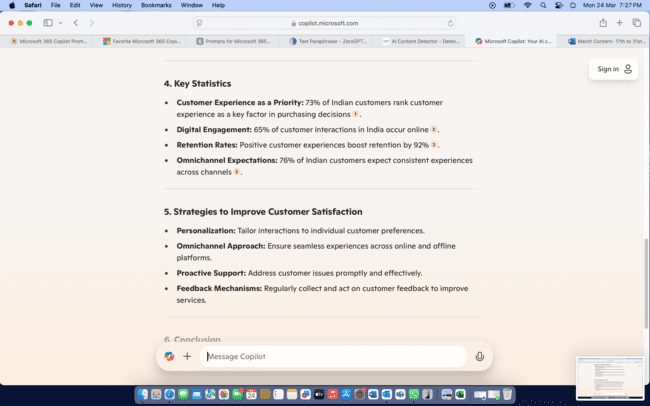
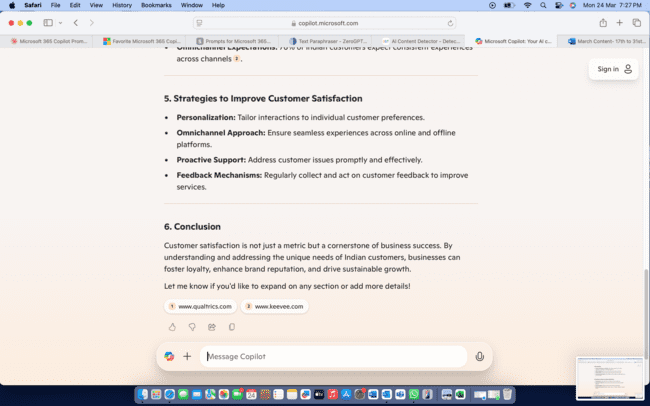
This prompt is powerful because it provides Copilot with clear direction on content, audience, structure, tone, and formatting requirements. The specificity helps Copilot generate a well-structured document that requires minimal editing.
2. Data Analysis and Visualization in Excel
Prompt: “Explore how to analyze and visualize data effectively using Excel with simple techniques and practical examples.”
Response
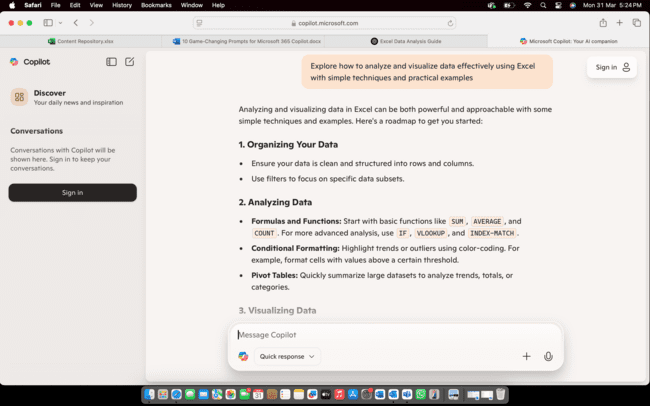
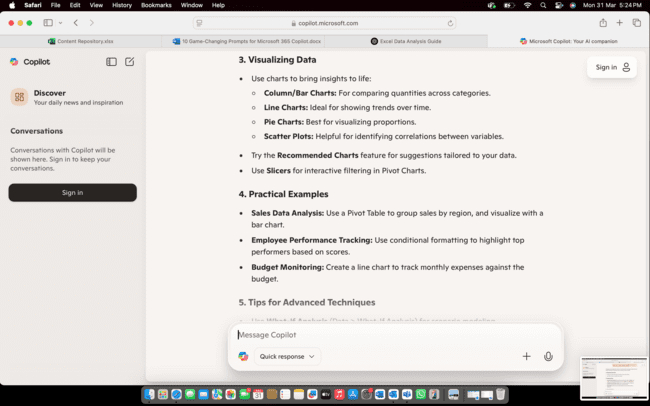
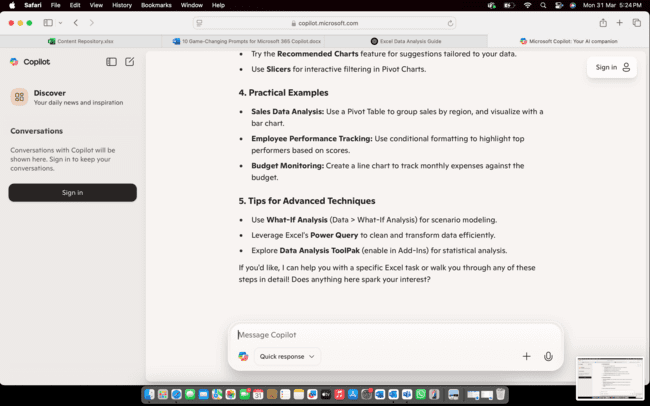
This prompt transforms Excel from a data storage tool to an insight engine. By specifying both the analysis approach and visualization requirements, you’re leveraging Copilot’s ability to quickly process data patterns that might take hours to discover manually.
3. Professional Presentation Creation in PowerPoint
Prompt: “Create a persuasive business presentation titled online branding for working professionals. Include an agenda, problem statement, solution overview, implementation plan, and call to action. Incorporate data visualizations for key metrics, and add speaker notes with talking points for each slide.”
Response
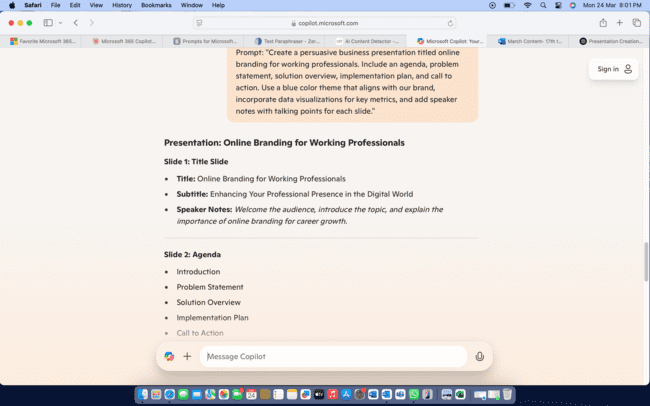
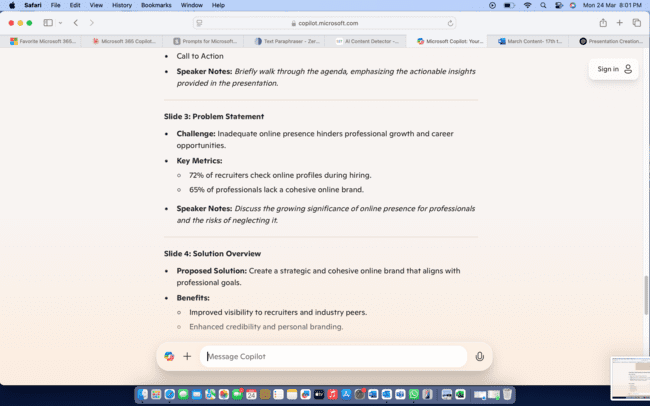
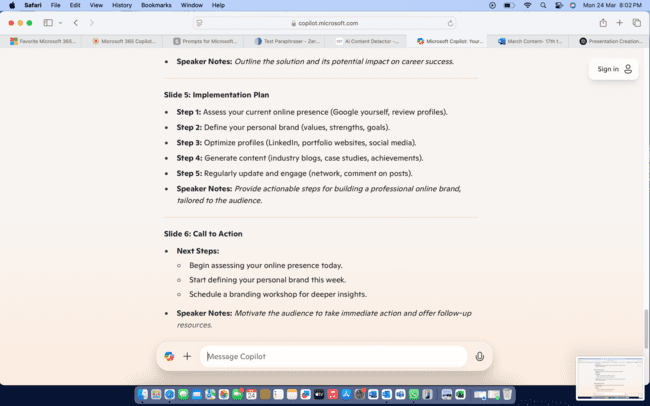
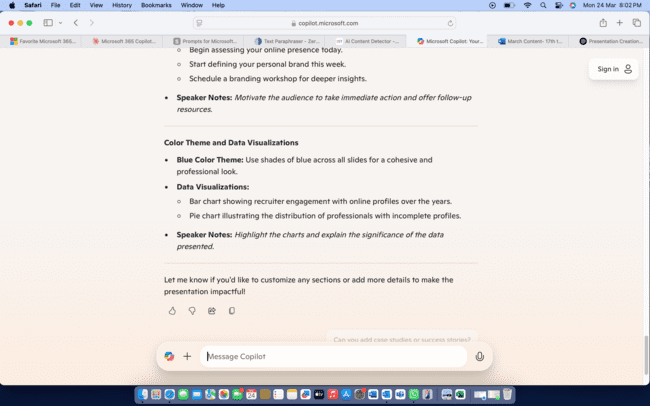
This prompt guides Copilot to create not just slides, but a complete presentation strategy with narrative flow and supporting elements.
4. Email Communication Management in Outlook
Prompt: ” Learn how to manage and organize your emails efficiently in Outlook with easy tips and tricks.”
Response
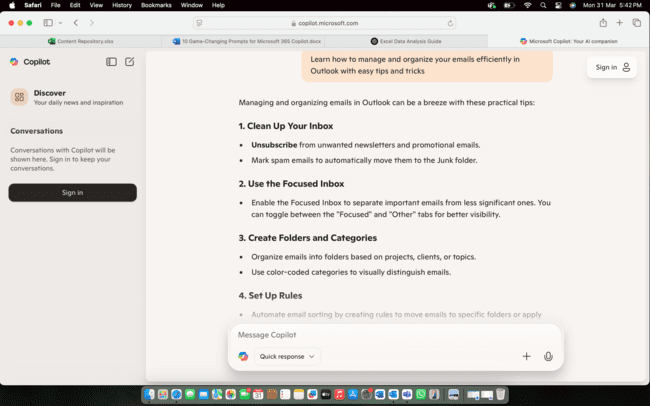
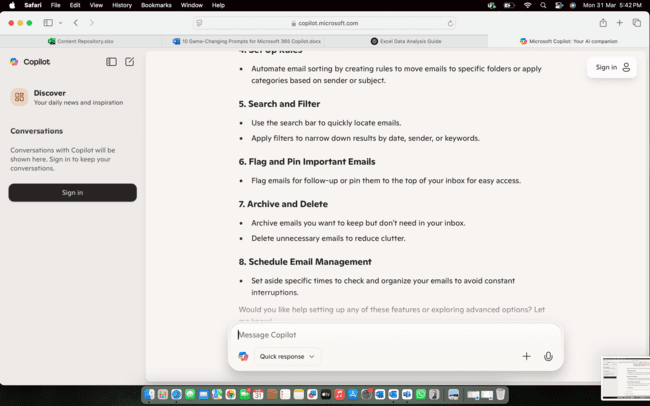
Email overload is a universal productivity drain. This prompt turns Copilot into your personal email triage system, helping you focus on what truly matters.
5. Meeting Preparation and Follow-up in Teams
Prompt: ” Discover simple steps to prepare for and follow up on meetings effectively using Microsoft Teams.”
Response
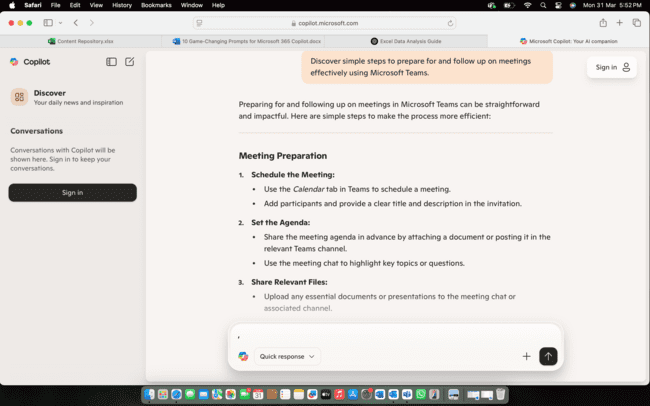
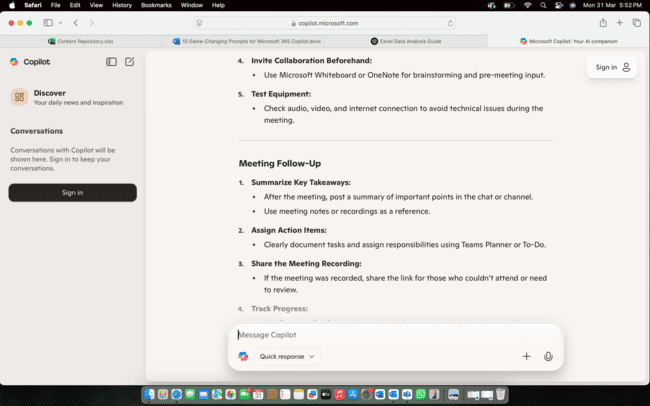
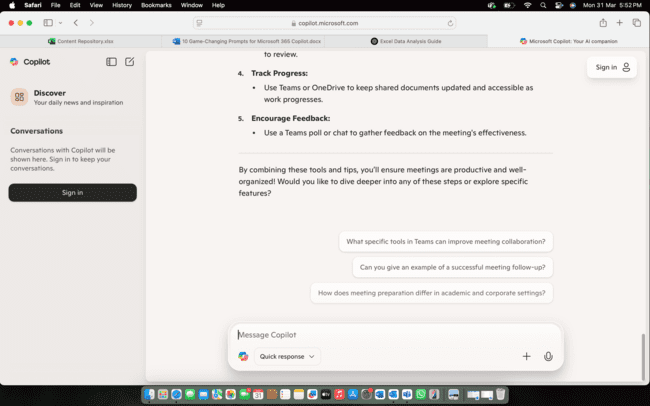
This prompt helps you transform meeting preparation from a rushed last-minute activity to a strategic advantage.
6. Cross-Application Content Repurposing
Prompt: “Take the content from my document about online branding and repurpose it into college presentation for simple audience. Adapt the tone for new audience, condense the information to focus on key aspects, and optimize the formatting for specific delivery method.”
Response
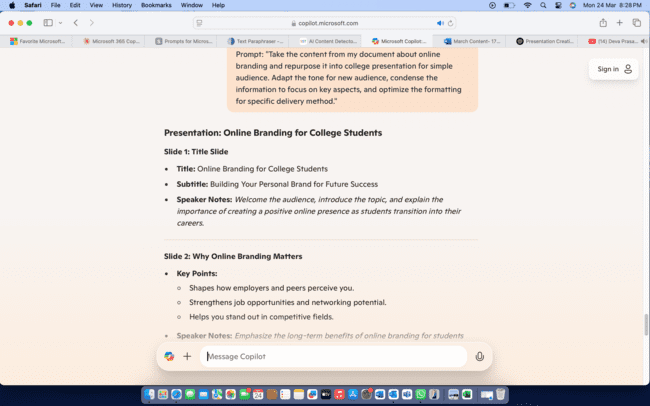
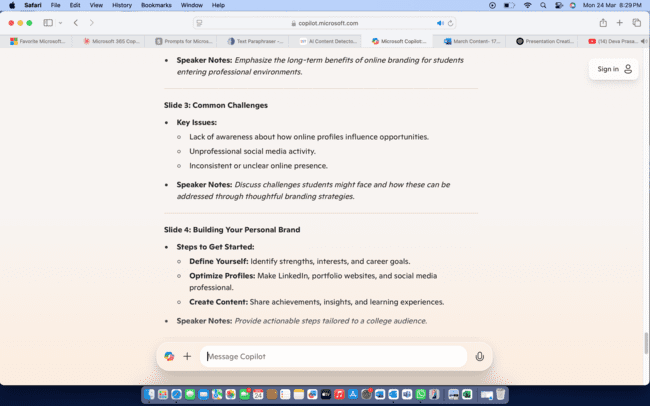
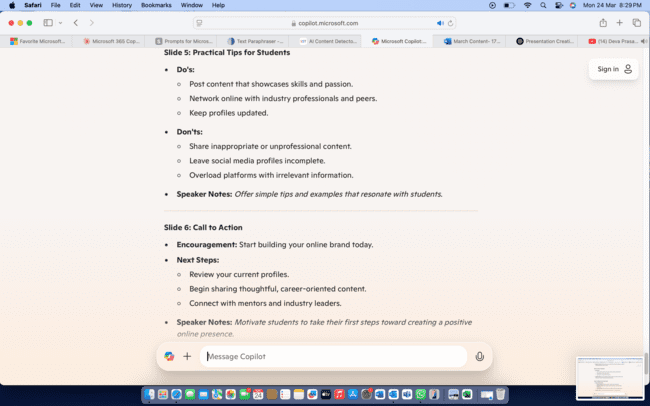
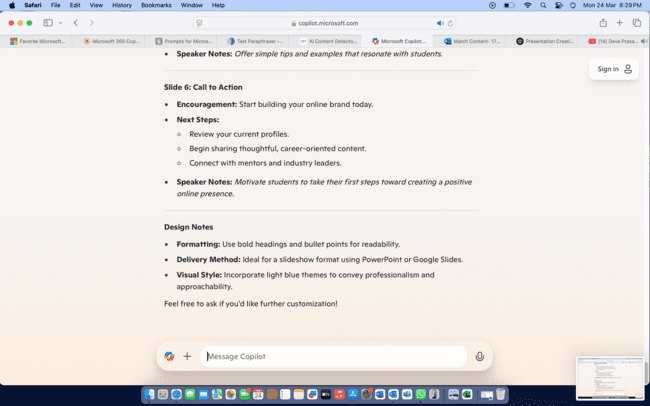
Content repurposing is often tedious and time-consuming. This prompt leverages Copilot’s ability to work across applications to transform existing content seamlessly.
7. Project Planning and Management
Prompt: “Create a detailed project plan for AI robotics with the goal of reaching 100 plus audience. Include project phases, key milestones, required resources, potential risks with mitigation strategies, and a RACI matrix assigning responsibilities to team members. Structure this in a format that can be easily transferred to our project management system.”
Response
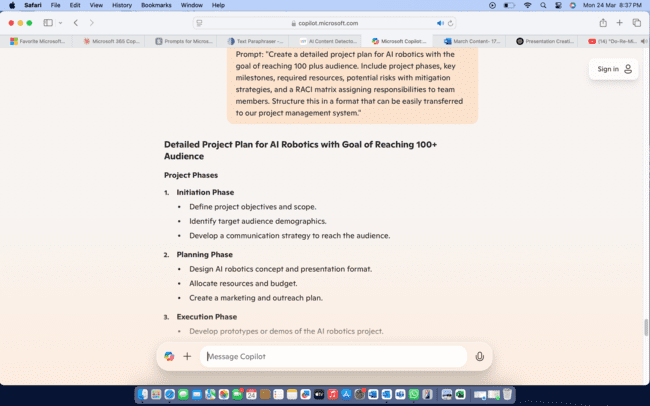
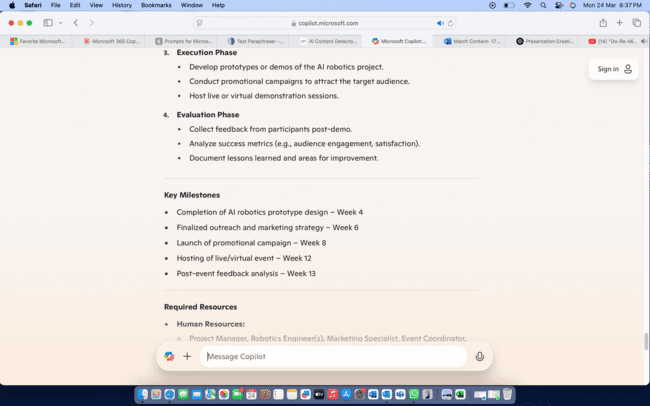
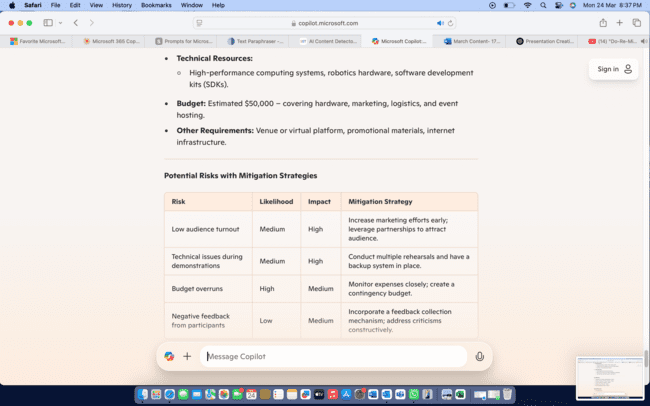
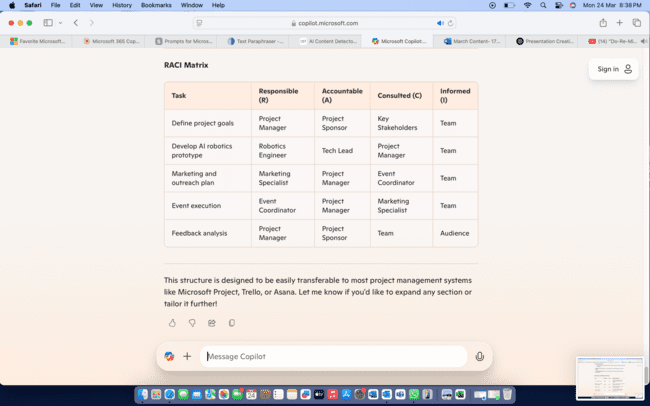
Project planning involves considering multiple variables simultaneously. This prompt helps Copilot generate a comprehensive framework that would typically require significant planning time.
8. Document Review and Feedback
Prompt: ” Learn how to review documents and provide clear, helpful feedback with ease.”
Response
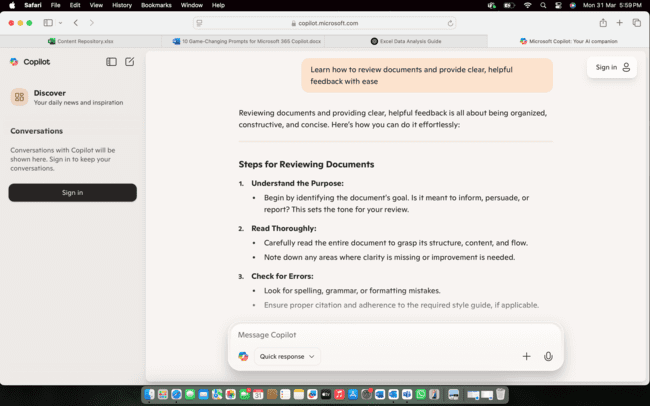
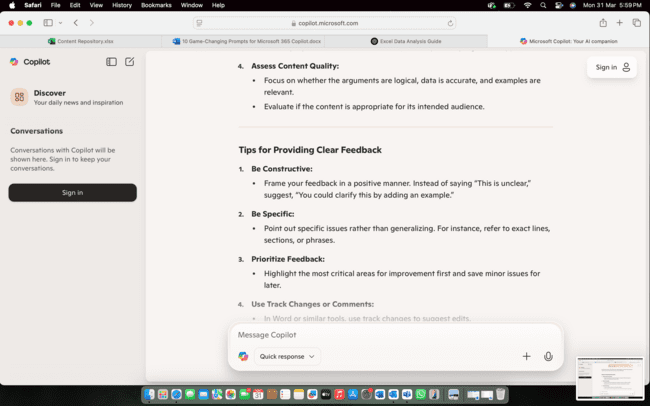
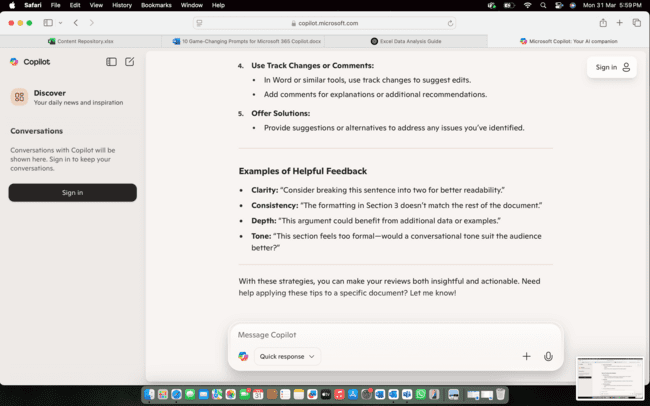
Having a second set of eyes on important documents is invaluable. This prompt positions Copilot as a constructive reviewer focused on specific improvement areas.
9. Intelligent Research Synthesis
Prompt: ” Learn how to gather and combine research insights efficiently for better decision-making.”
Response
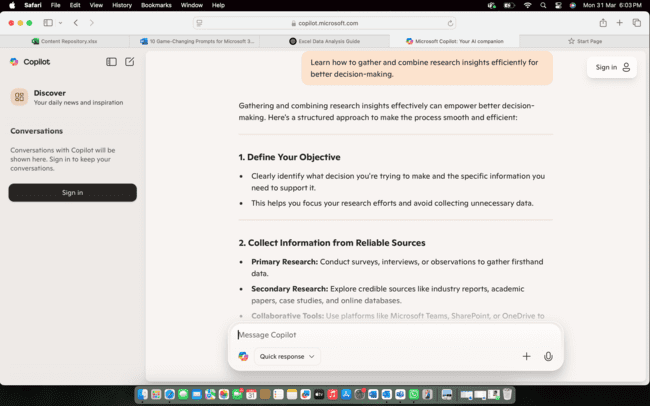
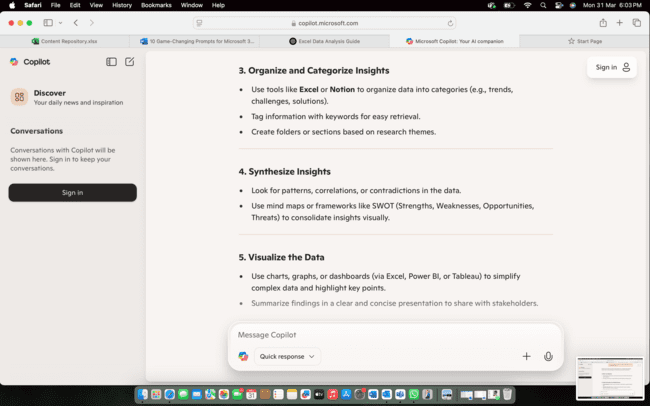
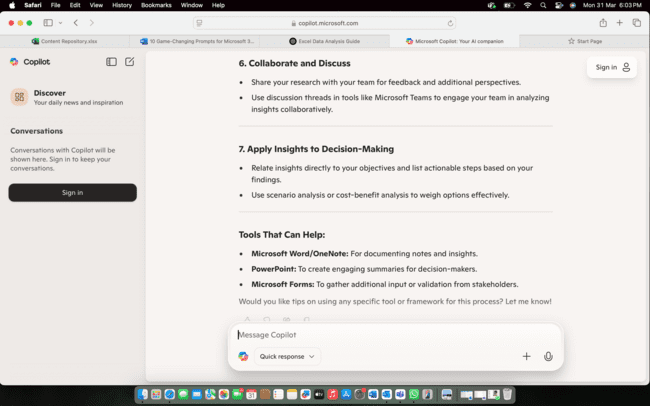
Information overload is a significant challenge. This prompt helps Copilot organize scattered information into a coherent knowledge resource.
10. Learning and Skill Development
Prompt: “Create a comprehensive learning plan for mastering machine learning relevant to my role as Natural Language Processing Engineer. Include beginner, intermediate, and advanced concepts, recommend specific exercises to practice each concept, suggest resources available within Microsoft 365 applications, and create a 30-day progressive learning schedule that fits into a busy professional’s calendar.”
Response
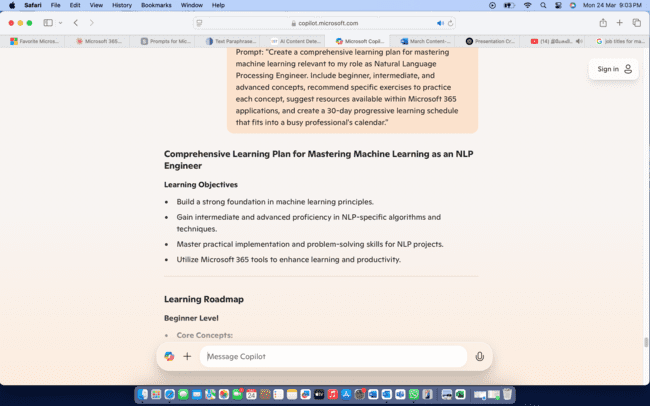
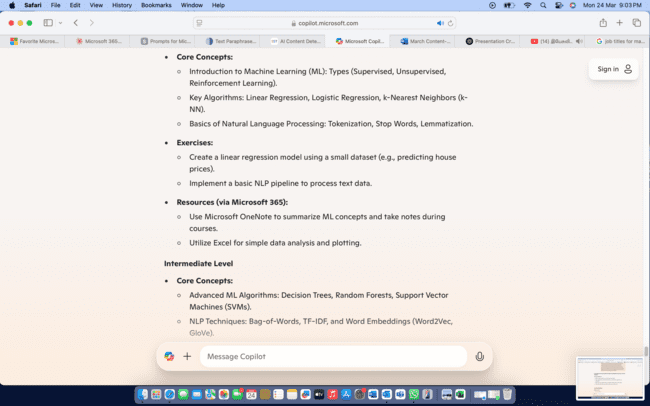
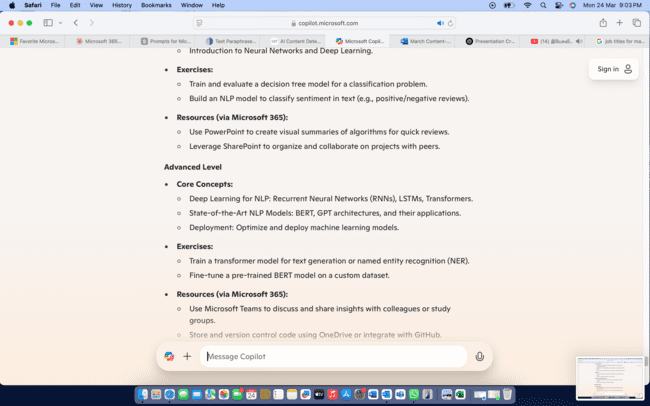
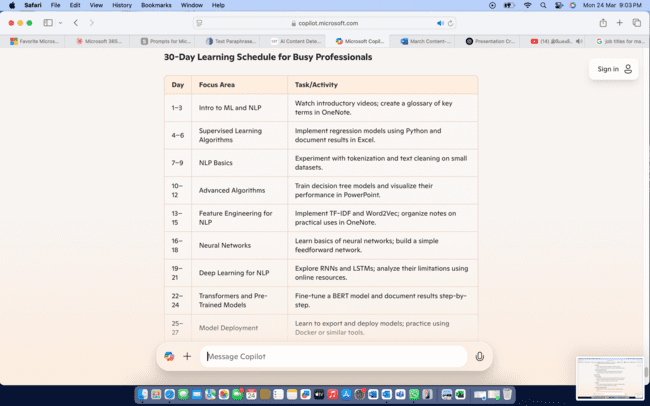
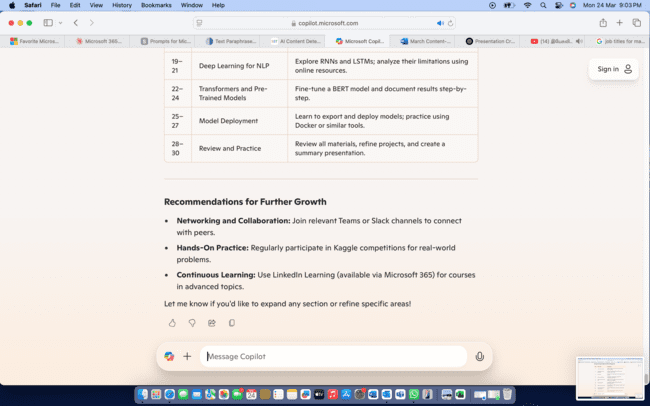
Continuous learning is essential in today’s workplace. This prompt helps Copilot structure personalized development paths that fit into your workflow.
Best Practices for Using Microsoft 365 Copilot Prompts
To enhance the effectiveness of these transformative prompts, keep these top recommendations in mind:
- Start with templates, then customize
Start with these prompt templates and adjust them for your unique needs and institutional context.
- Be specific about output format
When feasible, clearly indicate the exact structure and formatting you desire for the information.
- Iterate through multiple prompts
Complicated tasks typically gain from a sequence of connected prompts instead of attempting to achieve everything in a single request.
- Combine human judgment with AI efficiency
Utilize Copilot for the bulk of content generation and structuring, while leveraging your personal judgment to enhance and personalize the results.
- Share effective prompts with your team
Establish a prompt repository tailored to your organization’s typical tasks and procedures.
Final Thoughts
Microsoft 365 Copilot is changing our approach to daily work tasks. By learning these ten transformative prompts, you will not only enhance your individual productivity but also improve the quality of your results in documents, spreadsheets, presentations, emails, and team efforts.
Keep in mind that successful prompting is a blend of creativity and methodology—something that enhances through practice and exploration. Begin incorporating these prompts into your everyday tasks, and you’ll soon realize how Microsoft 365 Copilot can turn into your most essential productivity ally.
Are you prepared to transform your workflow with these innovative Microsoft 365 Copilot prompts? Start with the prompts that are most pertinent to your ongoing projects and witness the improvement in your productivity and quality of work.
For detailed insights and to explore sample prompts:
https://www.youtube.com/watch?v=5tA7bFt9SPk